Message 1 of 6

Not applicable
12-09-2019
09:00 PM
- Mark as New
- Bookmark
- Subscribe
- Mute
- Subscribe to RSS Feed
- Permalink
- Report
You really did not give us much to go on.
Looking at the image, I am going to guess that the items circled in Blue are standard text objects in the template.
The item circled in read appears to be an attribute (attribute names cannot have spaces).
This image appears to have come from a regular drawing, not a template.
You need to open the template drawing and make your changes there.
Sorry about the lack of detail, I've attached the DWG file so you can see what I mean, but I think what you're saying is correct, just how to do that is the issue.
I've tried changing it from the block editor and also with the TITLE BLOCK UPDATE tab.
Josh,
I looked at the title block and fixed that field description. What you need to do is open this drawing in ACE and Click on Project/Other Tools/Title Block Setup and select WD_TB Attrib. (You are using the WD_TB method of mapping the Title block information...)
From there, you will need to select which line is going to be used for the DWG_SIZE attribute.
Once you do that, save the drawing.
Using Swap/Update Block, you can update the titleblock block on your drawing to the updated one. (Swap/Update Block works with all blocks, not just ACE ones)
After that you will be able to run Title Block Update and have it fill in the new attribute.
Swap/Update Block can be applied to the entire project so you will be able to update all the titleblocks at once. I do this often to change the title block in a series of drawings....
Thanks for the information, but I'm still struggling a bit.
I have added the new attributes and saved the drawing as a new template, see attached.
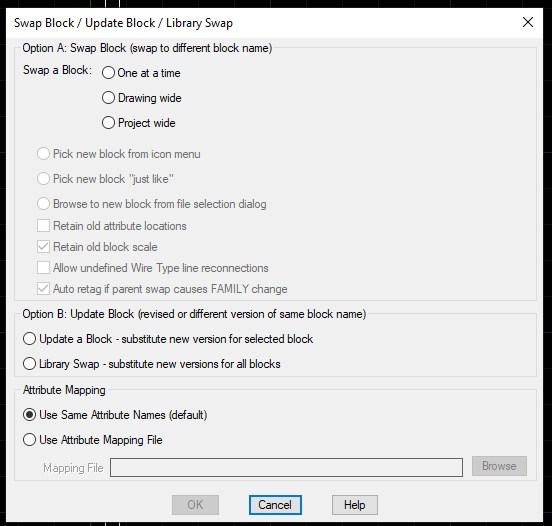
I'm not sure I'm using the correct "Swap/Update Block", is the attached picture the correct section I should be in?
sorry.
Regards,
Josh
You are in the right spot.
Select Option B: Update Block.
Click on the titleblock and then select the updated titleblock.
When done, run titleblock update to refresh the titleblock with the new information.