How do you draw lines on specific axis?

How do you draw lines on specific axis?

milanvidovic
Enthusiast Enthusiast
6,203 Views
13 Replies
Message 1 of 14

How do you draw lines on specific axis?

milanvidovic
Enthusiast
Enthusiast

From lots of experience using AutoCAD I know that going into a specific viewport will constraint your movements (logically) to the axis you can actually see. So I simply go into the Top viewport to draw a line on the X axis there and I can't. I keep going down the Z. Why? And how can I draw on whichever Axis I like? So much for the Enable Axis Constraints option. It's moments like this where I think i'm getting trolled by the software. Here's a screenshot. And yes, I know i'm not in the top viewport in that moment.


3DSMaxAxisDrawingAttempt.jpg

0 Likes
6,204 Views
13 Replies
Replies (13)
Message 2 of 14

leeminardi
Mentor
Mentor

In AutoCAD and 3ds Max you typically do NOT draw on a axis but draw on a plane.  Similar to AutoCAD, in 3ds Max screen picks  are projected to the XY plane (unless otherwise affect by snaps).  The active XY plane depends on which coordinate system is active -- view, local, world, etc.  You have to be careful when  you are in an "orthographic" view (not to be confused with a front view.  In this case the XY plane may be perpendicular to your viewing directions and screen picks cannot be project to the world XY plane.

lee.minardi
0 Likes
Message 3 of 14

milanvidovic
Enthusiast
Enthusiast

Not the answer I was looking for but alright I suppose. So there's no way for me to just draw a line, fillet it out where I want to add curvature and turn it into a cylinder? Is there anything like the Sweep command from AutoCAD in Max? I want to model pipes. Cylinders that have a specific path, to be exact.


After I draw everything on a plane, I would have to flip it in the orientation I want?


EDIT: Actually. That doesn't help at all. Because I want to continue my line in another direction (plane).

0 Likes
Message 4 of 14

leeminardi
Mentor
Mentor

There are many ways to do what you want.  One approach would be to turn on the grid, size it appropriate to your needs, and then draw the line on a plane with Grid Points snaps on.  YOu can then go to the modify panel, vertex sub-object and add a fillet (see below).

image.png

YOu could add a sweep modifier but for pipes it is easier and more efficient to just turn on the Enable Rendering options.

image.png

Unlike AutoCAD's @x,y,z option, there's no easy way to specify a delta z value when creating a line that I know of.  YOu could create a box and snap to the corners  to create a pipe run in 3D which I did below nd then filleted it.

image.png

Of course you can always edit the location of a vertex with absolute coordinates or a displacement with the Move Transform Type-In tool (F12).

lee.minardi
0 Likes
Message 5 of 14

milanvidovic
Enthusiast
Enthusiast

Something happened to my Grid... UGHHHHH...  


MaxScreen.jpg


Nevermind on the grid thing, I got it...


But THIS is ridiculous. RCS doesn't change depending on my settings. If i'm in the Right view and it's set to VIEW... It isn't that. I still see the RCS icon on the bottom left without the proper axis orientation relating to my setting. It SHOULD be working.


RCSBS.jpg

0 Likes
Message 6 of 14

milanvidovic
Enthusiast
Enthusiast

Here's a good video that explains RCS and it couldn't make more sense. Yet it just refuses to work. Because... Reasons and stuff.


https://www.youtube.com/watch?v=aWUBNRHPSBg

0 Likes
Message 7 of 14

leeminardi
Mentor
Mentor

the second image indicates that you are using the "pick" coordinate system.  I am not familiar with it and have never used it.  How do you think it should work?  I would use World or View.


lee.minardi
0 Likes
Message 8 of 14

milanvidovic
Enthusiast
Enthusiast

I would use View but it doesn't work. I'm trying to understand why they put in something that literally doesn't work. Or at least figure out why it doesn't work in this situation. In AutoCAD, you use "UCS" command, then choose View. The Z axis faces you every time you choose View as UCS. I'm choosing View for the RCS and.... It doesn't do anything? I'm guessing it works, it's just situational. It should work no matter what.


So here I am in Max trying to figure out how I can connect two lines. Thought since the RCS is so useful (pff-ff-ff) I would go and draw everything FLAT and rotate it to the proper orientation where I need it. I'm trying to connect two lines and I have no idea how. I want to merge them together without extending them. When I select both at the same time the menu I need goes away.


MaxBS.jpg

0 Likes
Message 9 of 14

leeminardi
Mentor
Mentor

Do you have a question?

lee.minardi
0 Likes
Message 10 of 14

milanvidovic
Enthusiast
Enthusiast

Yes. I'm now trying to figure out how splines work. I'm trying to connect those two points. They're highlighted green. I thought I figured out an intuitive way of creating what I want, but turns out Max is too dumb to be able to do that. I'm thinking it's smarter importing in part of the model from AutoCAD and doing the rest in Max at this point. Its equivalent of the UCS so far isn't very useful from what i've seen. I'm holding out calling it trash, but i'll stay patient for now.


I'm trying to connect those two endpoints. I want to model this toilet paper thing from my bathroom, minus the toilet paper. I might add in the toilet paper later.


Since this might now work this way, how would you go about modeling the toilet paper thing? Like I said, I wanted to lay down certain parts and draw in whichever plane I can, then change their orientation and assemble it. Since the RCS isn't very useful for this, I figured that was the next best option, using splines/lines.


Max.jpg


IMG_0251.JPG

0 Likes
Message 11 of 14

leeminardi
Mentor
Mentor

Perhaps the following Screencast will help you.

https://autode.sk/2WiqS1r


cc0c7644-e8e3-4657-b801-cbcb0690fcbf,640,620


lee.minardi
0 Likes
Message 12 of 14

milanvidovic
Enthusiast
Enthusiast

I recreated the part in AutoCAD more or less perfectly. If I had spent more time it would have been identical. But it's just to show the differences in the software and what I would want to achieve. Minus the torus parts going up vertically, that part is very simple.


In this specific instance I would like to know how to model something like this. And Max's Reference Coordinate System is either just buggy for me, I don't understand how I should be using it, or it's incredibly unintuitive and borderline useless for this. In AutoCAD, much like Max, you can change the UCS (RCS for Max) to your current view. And drawing primitives - anything used in 2D drafting really - is also done on the XY plane, just like Max. Except changing the UCS to view is as easy as selecting the desired view from the view cube and using the UCS command, View. And the software responds accordingly. Very intuitive, very responsive and useful when modeling.


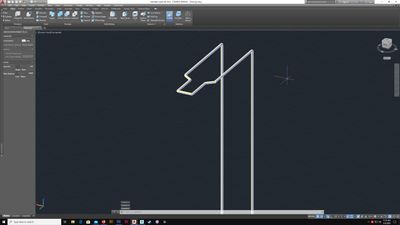
Here you can see I start drawing part of the metal piping/wiring. The part that goes vertically along the toilet paper thing and then goes ACROSS the XY axis. I drew that on the XY plane first.


CAD1.jpg


I drew the two vertical parts and the switched the coordinate system back to default, you can see that in the end result.


CAD2.jpg


 A circle of desired size is drawn on the XY plane in the same orientation as the bottom of the solid cylindrical structure. Then a sweep command is performed with the path that has been drawn as the sweep path.


CAD3.jpg


 And there is the result. Mint.


CAD4.jpg


From another view.


CAD5.jpg


So I know this is Max we're talking. I'm just trying to show how i'm thinking when I'm modeling. And I would love to see someone create the toilet paper thing in Max because it would address this. I believe the main issue here is the wonky RCS. And perhaps i'm getting ahead of myself with Max? I want to learn as much, as quickly as possible. The transition between the two software in regards to UI and navigation is a breeze. A lot of familiarity there. Some things for the developers to consider are familiarity in points of reference. But that's just me. The overall idea shares a lot of the same context. But... functionality? Errr... Yeah. I don't know about that.


Regardless, I appreciate the screencast still. But I would like to know ultimately what I should be learning next? Perhaps I jumped the gun. I have followed some video tutorials on modeling a table. What do you recommend is next for me?

0 Likes
Message 13 of 14

leeminardi
Mentor
Mentor

@milanvidovic   The RCS you keep referring to is not a coordinate system but a list  of coordinate systems.  A newbie such as your self should probably should find the world and local good enough to address most of your needs. If you want a coordinate system skewed in space (similar to AutoCAD's UCS) then look into grid helpers.


You asked for help in how to create a toilet paper holder.  I created a screencast for you showing the process yet you still state "I would love to see someone create the toilet paper thing in Max".  I don't think I can do much more for you.


3ds Max is not AutoCAD.  Their primary uses are much different.  Relax, don't try to force 3ds Max to be AutoCAD.  Get into its rhythm.  If you can't then move on.  It's not for you.


Good luck and best wishes.


Lee

lee.minardi
0 Likes
Message 14 of 14

milanvidovic
Enthusiast
Enthusiast

Oh, I assumed the video was a part of a series. It doesn't address the main issue I have of drawing in different planes. The part where the toilet paper roll would go goes over/across the section where more rolls are stored, if that makes sense. Yours is on another plane, "flat" if you will. If you see my latter screenshots you should be able to see the perspective of that particular part that goes OVER the torus parts that are in a vertical orientation. It goes up/along, and the "holder" part goes over the torus parts. If I had to draw it the same way, well, I would never run into this issue altogether.


I think the better question would be, how would I replicate that exact same part in Max? It addresses the issue I have of drawing in different planes/orientations.

0 Likes