Messed up Normals (Unify not working?)

Messed up Normals (Unify not working?)

Anonymous
Not applicable
12,868 Views
5 Replies
Message 1 of 6

Messed up Normals (Unify not working?)

Anonymous
Not applicable

I have a large collection of very stubborn models which all have a problem with normals facing. The Unify command by itself is not working. I've researched several threads which mention that Welding vertices or edges may help the Unify command work properly, but I haven't had any help with that either.


Flipping normals manuall will work, but all of these models are complex, and it would take hours to fix even just 1 model, and I have many to fix.

Here's the sample OBJ model and PNG texture:
https://pastebin.com/raw/iVaKF401
https://orig00.deviantart.net/328f/...i3l-dceyg6b.png

Here's a list of things I've tried: (none of them worked)
-Importing normals from file and Unifying
-Using Auto-normals and Unifying
-Welding vertices first, and then Unifying
-Welding vertices, exporting, importing with auto-normals, and then unifying

Does anyone have any ideas to fix these?
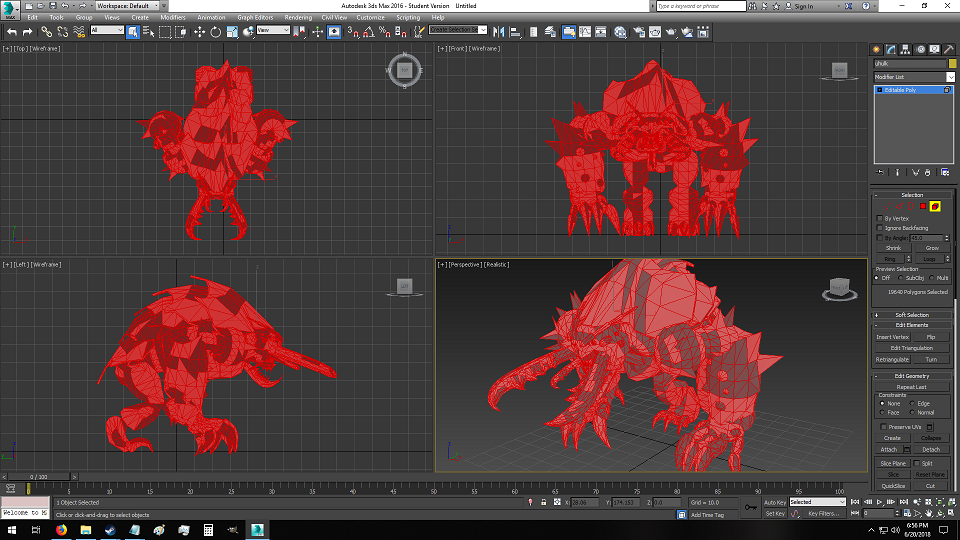
 

YU5NULv

0 Likes
Accepted solutions (1)
12,869 Views
5 Replies
Replies (5)
Message 2 of 6

Fadhil_Farook
Collaborator
Collaborator

Try doing a RESET XFORM, then collapsing back into an EDITABLE POLY. You can try the EDIT NORMALS then after.

0 Likes
Message 3 of 6

Anonymous
Not applicable

Un-select the whole thing and in "face mode" select the faces you want to flip and flip them. You may want to hit Q to do this so you don't accidentally move rotate or scale any faces.  This wont work if you are trying to manipulate elements.

0 Likes
Message 4 of 6

Irshad_Shah_3dArtist
Advocate
Advocate

Hi Mate..

In modify panel, select Ignore Backfacing.

Then left click and drag to select complete model(Don't do "Ctrl+A"). It will just select front facing polys then Ctrl+I to make inverted selection. It will select all backfacing polys then just click flip.

Hope this will help.

If you need any other help please lemme know.


Thank you

Irshad Shah

Message 5 of 6

Anonymous
Not applicable
Accepted solution

Just wanted to let everyone know, I found the solution.


The mesh had duplicated every face, except in reverse. So when trying to run the Unify function, 3DS Max couldn't tell which faces to unify.


So the solution was to split and delete the faces so there was only 1 "set" and not 2. Someone wrote a maxscript for it, but it's not really important.


After the faces were split in this way, the Unify function worked correctly.

0 Likes
Message 6 of 6

Anonymous
Not applicable

Congratulations Dude.

  Kudos's to you for finding a solution. Honestly I thought it was solved.  Do you know when or how this happened?  I have done something like this more than once and I know your pain.  When I have done this I it has been when I was selecting faces to do some sort of operation and accidentally moved them.  I know that little window pops up and asks if you want to clone  or element or what ever so you say whatever and Ctrl z to get rid of it then redo to find that selection that you have painstakingly been plucking out under a bend and voila you have just re did your undo or something and you are happily modeling away on a #$% uped mesh. All seems hunky dory.  Until *^&!

I have done my best to develop a couple of habits to prevent this they are Q and 7.

Q.  If you hit Q before doing complex selections it changes your selector in to a selector so it wont accidentally scale move or rotate in mid operation.

7.  Seven pops up a little thingy in the corner that will tell you what you how many faces edges or vertices you have selected as you select them.  I have found that depending on your machine and scene size this can effect redraw rates so I toggle it on and off as I need it.  (I may be wrong it may not affect redraw rates I am not sure.)


Perhaps you do these things already.  None the less you should be proud of your self for having the tenacity to figure out a solution to your dilemma.

Be Fun.

C.

0 Likes