Announcements
Autodesk has retired Inventor Fusion. We recommend our customers to visit the Fusion 360 community for related inquiries.

Ribbon Displaying on Secondary Display

Ribbon Displaying on Secondary Display

JReese-NC
Advocate Advocate
2,239 Views
4 Replies
Message 1 of 5

Ribbon Displaying on Secondary Display

JReese-NC
Advocate
Advocate

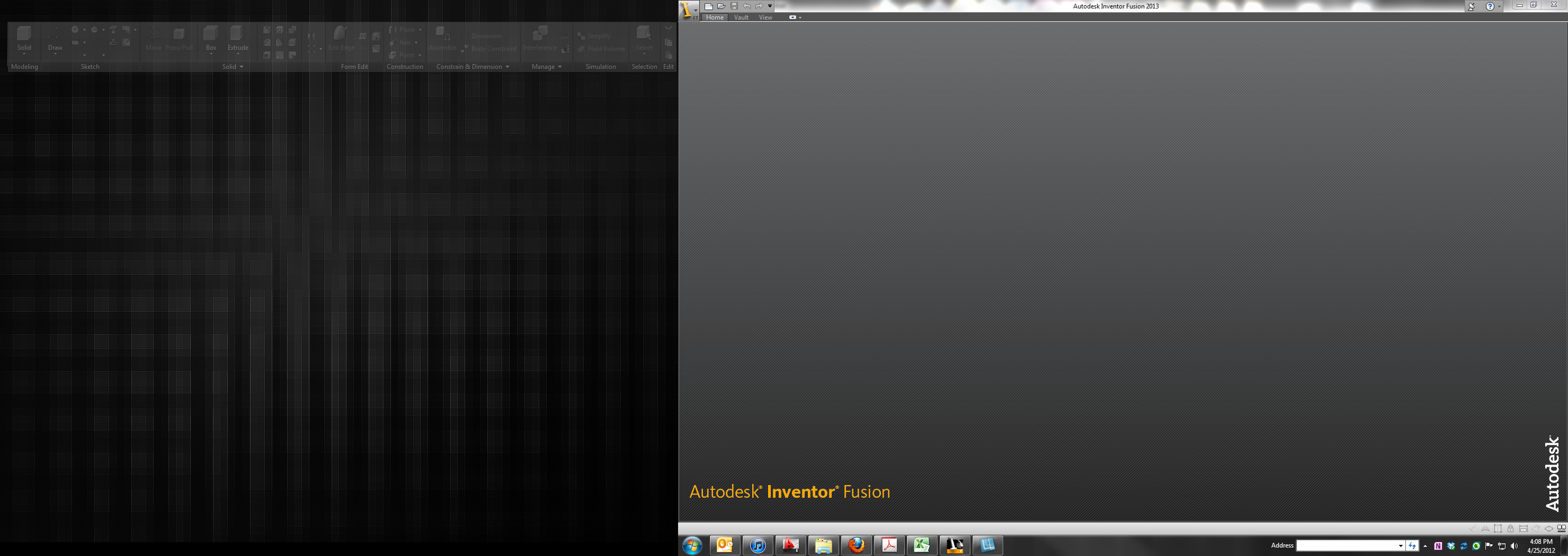
I just installed the latest version of Autodesk Inventor Fusion (2013) (2.0.0.206) (64bit) and since first launch the Ribbon is displaying on my secondary display while the application appears on my primary display. Well kind of anyway - the Ribbon tab titles appear on the main display in the application window but the Ribbon components display on the secondary. See the attached screenshot. My secondary display is to my left so the left of the screenshot is my secondary while the right is my primary.


I don't see any way to move the Ribbon back to primary display other than dragging parts of it but maybe I am missing something. I have only used Inventor Fusion a few times - mainly use it to generate 2D items for use in ACADE.


Any help or info? Not sure if this is a bug or a feature.

-----
JReese
Dell Precision 3450
Core i7-11700, 32GB RAM, NVIDIA T400
Windows 10 Professional
Autocad Electrical 2025
Reply
Reply
0 Likes
Accepted solutions (1)
2,240 Views
4 Replies
Replies (4)
Message 2 of 5

schneik-adsk
Community Manager
Community Manager
Accepted solution

This is a known issue. We apologize. If you take Inventor Fusion out of full screen/maximized window mode the problem will go away. 


Thanks for letting us know about the issue.

Kevin Schneider
Reply
Reply
Message 3 of 5

Anonymous
Not applicable

I have a customer who is also running into this issue.  Do you expect a hotfix or SP to be released for Fusion?

Reply
Reply
0 Likes
Message 4 of 5

Anonymous
Not applicable

I'm also having the same issue on my PC.


It's very frustrating since my main display is a 40" led hdtv that connects through the hdmi port which is automaticly detected as a secondary monitor no matter what the physical port configuration is. So I have to manually set it as the main display through the display options in Windows.


I hope this is resolved soon.


Thanks.


[update]


The only solution that I have found is to manually drag the corners of the window as close as possible to the corners of the screen without maximizing it completely.


I hope this helps others. Smiley Wink

Reply
Reply
0 Likes
Message 5 of 5

codywohlers
Explorer
Explorer

Any update on this?  

(Just got an upgraded laptop at work and was about to chase down the IT dept until I found this thread.)

Reply
Reply
0 Likes