Announcements
Autodesk has retired Inventor Fusion. We recommend our customers to visit the Fusion 360 community for related inquiries.

How do you reset Inventor Fusion toolbars to the default configuration?

How do you reset Inventor Fusion toolbars to the default configuration?

Anonymous
Not applicable
3,232 Views
8 Replies
Message 1 of 9

How do you reset Inventor Fusion toolbars to the default configuration?

Anonymous
Not applicable

I mistakenly dragged a tool off onto the canvas (thinking that was the way to use the tool--newbie), and the tool was removed from the toolbar.


I don't see any way to restore the toolbars, to get the tool back.


Thanks ...

Reply
Reply
0 Likes
Accepted solutions (1)
3,233 Views
8 Replies
Replies (8)
Message 2 of 9

schneik-adsk
Community Manager
Community Manager

Are you using the Windows or Mac version?

Kevin Schneider
Reply
Reply
0 Likes
Message 3 of 9

Anonymous
Not applicable

Sorry--Mac.

Reply
Reply
0 Likes
Message 4 of 9

Phil.E
Autodesk
Autodesk

From the dropdown menus on the toolbar you can find a small grip to the right of each tool (requires a mouse hover near right hand edge of dropdown list to reveal it). Using this grip, drag the tool to the toolbar in the area above the list. In this way you can customize your tool bar with your favorite tools or you can remove tools you do not use from the default toolbar as you have discovered.


(Please mark this response as "Accept as Solution" if it answers your question)


Phil Eichmiller
Software Engineer
Quality Assurance
Autodesk, Inc.


Reply
Reply
0 Likes
Message 5 of 9

schneik-adsk
Community Manager
Community Manager

You can also right mouse click on the toolbar and choose reset toolbar customization.


Kevin Schneider
Reply
Reply
Message 6 of 9

Anonymous
Not applicable

"Reset toolbar customization" is the command / function that I want--thanks. I want the toolbars to be like they were when I first installed the product (before I mistakenly dragged some tools off the toolbar).


However, the only place that right-clicking brings up menus is the drawing space. Right-clicking anywhere in the toolbar does not bring up any menus (Mac OS X -- 10.7.5).


Am I doing something wrong? Can you be more specific (e.g., screenshot)? Is there another way to invoke the command (or achieve the same result)?


Thanks!


Alec 

Reply
Reply
0 Likes
Message 7 of 9

SallyYang
Autodesk
Autodesk

Hi Alec,


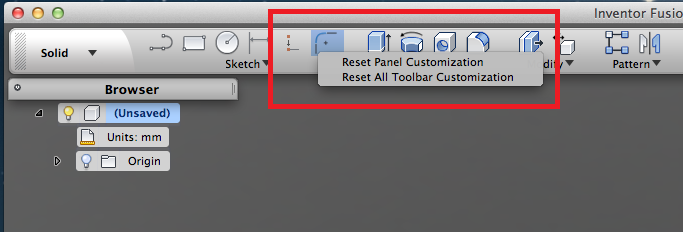
Please see the screenshot for this command.

You need right click the command on toolbar to invoke the context mene. Please note the command will be disable if your toolbar was the same with default.Reset Toolbar.png

Regards,
Sally


Sally Yang
Software QA Engineer
Fusion 360 Quality Assurance Team
Autodesk, Inc.
Reply
Reply
0 Likes
Message 8 of 9

Anonymous
Not applicable

Thanks for the help.


Your screenshot is very clear. Unfortunately, that context menu won't come up on my Mac, even though right-click is enabled (and working elsewhere in the tool) and even though the toolbars are most definitely not the default (I dragged two more tools off onto the canvas).


Is there some other way to invoke this command (or get the context menu on the toolbar to work? Thanks ...

Reply
Reply
0 Likes
Message 9 of 9

SallyYang
Autodesk
Autodesk
Accepted solution

This is really strange that the command couldn't be invoked, however you can try below steps to clean you configuration files and get your toolbar reset:


  1. First, log on to your account.
  2. At Finder>Go>Go to Folder, enter: ~/Library/Application Support/Autodesk
  3. Look for the folder called Inventor Fusion
  4. Delete it
  5. Start Fusion
Regards,
Sally


Sally Yang
Software QA Engineer
Fusion 360 Quality Assurance Team
Autodesk, Inc.
Reply
Reply
0 Likes