VAULT SERVER 2013 - Failed connecting to SQL Server

VAULT SERVER 2013 - Failed connecting to SQL Server

Anonymous
Not applicable
6,169 Views
22 Replies
Message 1 of 23

VAULT SERVER 2013 - Failed connecting to SQL Server

Anonymous
Not applicable

Hi,


I've upgrade from 2012 to 2013 but when I want to install the Vault Server 2013 an error message appears:


Failed connecting to SQL Server –

server=localhost\AUTODESKVAULT;user id=sa;password=*****


I've appreciate if anybody can help me.


Regards.

0 Likes
Accepted solutions (1)
6,170 Views
22 Replies
Replies (22)
Message 2 of 23

olearya
Alumni
Alumni

Hi There,


2 things to check:


Can you check that SQL is actually running and secondly you will need to make sure that if you have changes the sa password this is modified during the install settings.


If you have the SQL Management Studio installed this is easy to test. 


Allan
Product Manager
Autodesk, Inc.
0 Likes
Message 3 of 23

Anonymous
Not applicable

Start a CMD on the server and enter the command

iisreset


Then try again to connect from the Vault client.


If it doesn't works, check your Default Web Site : you must have only one Default Web Site. (problem occurs on French OS in my experience)

0 Likes
Message 4 of 23

Anonymous
Not applicable

Hi,


I have a clean backup. So, I've uninstalled everything about the old adms 2012, SQL server to make a clean installation.

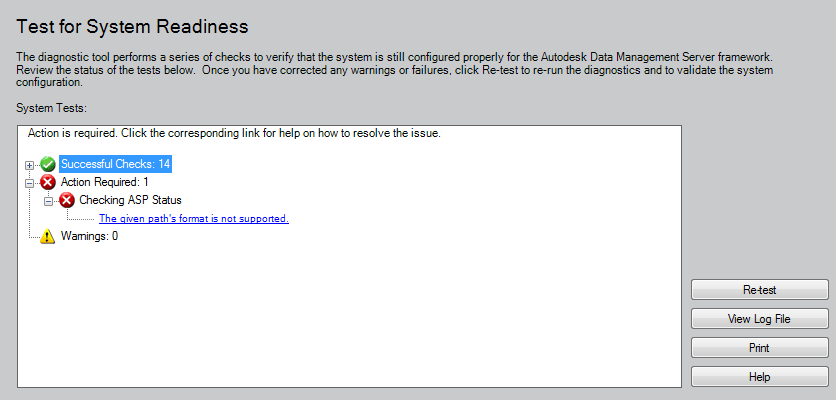
I also have ran the "Scripttool.exe" and solved some errors but still have one that I can´t solve. Please see the attached image.


Message: "Checking ASP Status    The given path's format is not supported."


Regards.

0 Likes
Message 5 of 23

Anonymous
Not applicable

I've tried to install the Vault server on another machine and here comes again the ASP message with a variation. Pleas see the attached image.error 2.PNG

0 Likes
Message 6 of 23

JamesMcMullen
Autodesk
Autodesk

If you attempt to browse to the location listed in the link, does the file exist?  Based on this error and the one you mentioned above, I am thinking that there is something wrong with the media.  But, let's make sure that is the case.


-Jim


James McMullen
Principal SQA Eng.
0 Likes
Message 7 of 23

Anonymous
Not applicable

Yes. The files are in the media but with a little difference in the path.


The setup ask for:

D:\INVENTOR 2013\x64\ADMS\Program Files\Autodesk\ADMS 2013\Tools\TestASPNet.msi

instead the "TestASPNet.msi" files exists in:

D:\INVENTOR 2013\x64\en-US\ADMS\Program Files\Autodesk\ADMS 2013\Tools\TestASPNet.msi

The variation in the path is the "en-US" folder.


So. I've decided to copy the files into the path asked for the setup and now I got the nex message:


Captura2.PNG

0 Likes
Message 8 of 23

JamesMcMullen
Autodesk
Autodesk

I am making the assumption that this might be a download.  Where was the source?  Unfortunately, we have 3 different ways that someone can get the Vault.  Also, are you using an English OS or a different language?  I would like to reproduce the issue here to help better explain a solution.


Thanks,

Jim


James McMullen
Principal SQA Eng.
0 Likes
Message 9 of 23

Anonymous
Not applicable

Thanks Jim.


In fact. The machine has an Spanish OS, and the install media is an english version. The media was downloaded from the upgrade link of the e-mail sent by Autodesk. So, I´ve installed the Suite for inventor but still I can´t setup the Vault server.


Regards,


Carlos Buitrago

Colombia.

0 Likes
Message 10 of 23

JamesMcMullen
Autodesk
Autodesk

Can you try switching the "INVENTOR 2013" to "V_Server"?  Also, what happens when you run the MSI directly?


-Jim


James McMullen
Principal SQA Eng.
0 Likes
Message 11 of 23

Anonymous
Not applicable

I switched the "INVENTOR 2013" to "V_Server", and ran the Scripttool and remains the same message.


Then, I´ve ran the MSI file and the message changed to:


error3.PNG


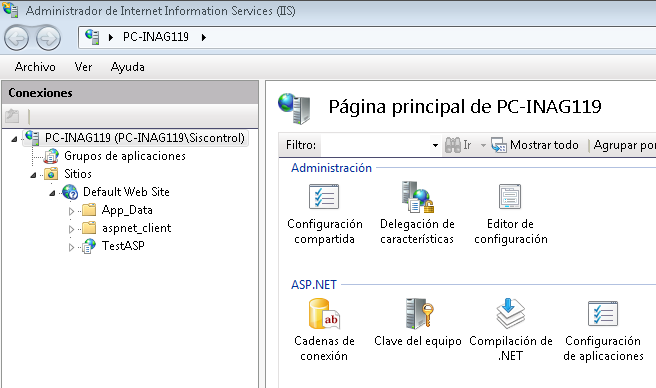
Also I´ve looked the IIS manager and this is the state:


error4.PNG


Regards,

Carlos Buitrago

0 Likes
Message 12 of 23

Anonymous
Not applicable

I've switched the "INVENTOR 2013" to "V_Server" and ran the MSI file and this is the new message:


error3.PNG


I've checked the IIS manager and this is now the state:


error4.PNG


Regards,

0 Likes
Message 13 of 23

JamesMcMullen
Autodesk
Autodesk

It looks like it is something within the MSI itself where I was thinking it was a path issue to the MSI.  I am going to have to pass this along to the install team and see what they can recommend.  To get a fast response, I would open up a help ticket with Autodesk.


-Jim


James McMullen
Principal SQA Eng.
0 Likes
Message 14 of 23

Anonymous
Not applicable

Ok. Thank you very much.


I'll contact the Autodesk help.


Regards.

0 Likes
Message 15 of 23

samuel.seah
Alumni
Alumni

Hi Carlos,


Please have a look at the pre-check log file. Inside the log file under the row "Checking ASP Status", can you provide us with the detailed information that is displayed over there?


Thanks,

Samuel

0 Likes
Message 16 of 23

Anonymous
Not applicable

Hi.


This message is shown in that row:


"Unable To find MSI file:D:\INVENTOR 2013\x64\ADMS\Program Files\Autodesk\ADMS 2013\Tools\TestASPNet.msi"


Thanks,


Carlos Buitrago.

0 Likes
Message 17 of 23

samuel.seah
Alumni
Alumni

I was unable to reproduce the issue on my machine. Will you be able to provide me with the following details:


1) The type of Inventor Suite which you have downloaded (Product Design/Factory Design)

2) The setup.ini file inside the install folder


Thanks,

Samuel

0 Likes
Message 18 of 23

Anonymous
Not applicable

Hi, Samuel.


1) Factory Design Suite Premium


2) Setup.ini file attached.

0 Likes
Message 19 of 23

Anonymous
Not applicable

The computer has an spanish OS. Windows 7 64 bit, and the Autodesk Vault server 2013 is in english version. Can be this a reason for those setup problems?.


Regards,

Carlos Buitrago.

0 Likes
Message 20 of 23

Anonymous
Not applicable

When I see the error log file, It seems that the setup is searching for a folder in the path: "\\Autodesk Factory Design Suite 2013\x86\en-US\edmprechecks" ...., but when I look into the media I don't see any folder called edmprechecks.


I think that the media for Windows 7 64 bit, may be incomplete.


Can you take a look?


Regards,

Carlos Buitrago.

0 Likes