Center of dimensions or Reference Planes

Center of dimensions or Reference Planes

Anonymous
Not applicable
2,642 Views
2 Replies
Message 1 of 3

Center of dimensions or Reference Planes

Anonymous
Not applicable

Trying to center some things in Revit LT 2014.  How do you find the center of dimension lines and refence planes and the like.  AutoCad KNOWS where the center is for these things.  How to tell in Revit?  For instance, I am trying to center an imported toilet in a space in a bathroom and something like this would take me about 5 seconds in ACad and here I am having to log on to a help forum to figure this out...Just part of the fun learning new 3D software  guess.  Thanks for any help out there.

0 Likes
Accepted solutions (1)
2,643 Views
2 Replies
Replies (2)
Message 2 of 3

Alfredo_Medina
Mentor
Mentor
Accepted solution

One good piece of advice for learning Revit is not to compare it with AutoCAD. That helps a lot, believe me. Also, some training is recommended.


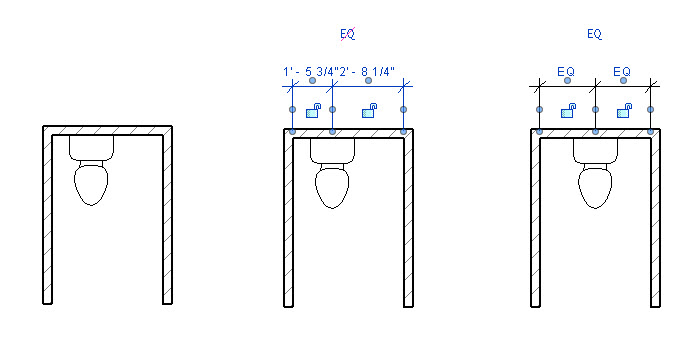
To answer your question: if you want to center an object in regards to a space, what we do is this: Annotation > Aligned (dimension) > then do 3 clicks: first click on the face of the wall on the left, the second click on the vertical reference plane of the object, the third click on the face of the wall on the right, and a four click away on an empty space to finish the process. Then, click on "EQ". You have the option of deleting the dimension and keeping the constraint.


6-11-2013 11-51-24 AM.jpg


Alfredo Medina _________________________________________________________________ ______
Licensed Architect (Florida) | Freelance Instructor | Profile on Linkedin
Message 3 of 3

Anonymous
Not applicable

You the Man, Afredo!  Thank you.  Worked perfectly.  The key difference between Revit and AutoCad in this context is that Revit objects evidently inherently have centerlines built into them, which the aligned dimension can detect, then move with the EQ selection.  This is a basic classic that I'm going to printout and stick into my Revit For Dummies notebook.

Have a great day. 

0 Likes