Notebook, Glyphs

Notebook, Glyphs

Anonymous
Not applicable
774 Views
4 Replies
Message 1 of 5

Notebook, Glyphs

Anonymous
Not applicable

I would like to turn off the visability of Engineer's Notebooks and Glyphs globally using the API. 


Does anyone know of controls for this?

0 Likes
775 Views
4 Replies
Replies (4)
Message 2 of 5

YuhanZhang
Autodesk
Autodesk

Currently we can only turn off the visibility of the browser node for Engineer's Notebooks, but could not hide the glyph.


If this solves the problem please click ACCEPT SOLUTION so other people can find it easily.


Rocky Zhang
Inventor API PD
Manufacturing Solutions
Autodesk, Inc.

0 Likes
Message 3 of 5

christian.postma
Enthusiast
Enthusiast

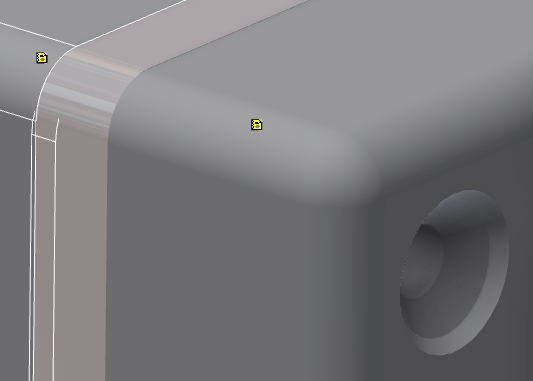
By now we arrived in 2023, any possibility to switch visibility of notebook glyphs?

christianpostma_0-1675865410904.png


0 Likes
Message 4 of 5

WCrihfield
Mentor
Mentor

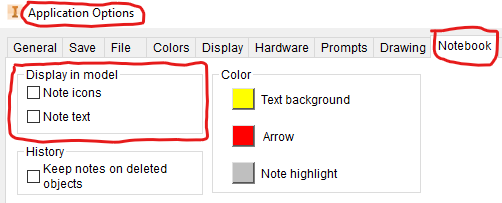
Hi @christian.postma.  I am using 2022.4 software, and I have settings within the Application Options > Notebook tab for the visibility of these.  Maybe this is what you were looking for.

WCrihfield_0-1675874371001.png

Edit:  And below is the API code route for those settings:

Dim oOptions As NotebookOptions = ThisApplication.NotebookOptions
oOptions.DisplayNoteIcons = False
oOptions.DisplayNoteText = False
oOptions.KeepNotesOnDeletedObjects = False
Dim oTO As TransientObjects = ThisApplication.TransientObjects
oYellow = oTO.CreateColor(255, 255, 0)
oRed = oTO.CreateColor(255, 0, 0)
oGrey = oTO.CreateColor(191, 191, 191)
oOptions.TextBackgroundColor = oYellow
oOptions.ArrowColor = oRed
oOptions.NoteHighlightColor = oGrey

If this solved your problem, or answered your question, please click ACCEPT SOLUTION .
Or, if this helped you, please click (LIKE or KUDOS) 👍.

Wesley Crihfield

EESignature

(Not an Autodesk Employee)

Message 5 of 5

christian.postma
Enthusiast
Enthusiast

Hello @WCrihfield,


Thanks for your prompt reply. Sometimes I can punch myself not looking for the answer in the right place....


You solved it!


For any anybody with the same question:

Q: Make Notebook icons/glyphs invisible, how?

christianpostma_1-1675950177380.png

Opening Application options and untick  'Note Icons', hit 'apply' and no change is made to the glyphs.

christianpostma_2-1675950278593.png

Because the settings are aplied to the application itself, you need to reopen the file you are working on. 

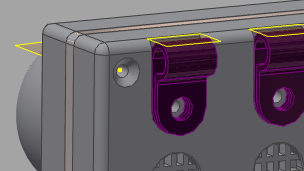
Then the glyphs are invisible.

christianpostma_3-1675950437238.png


@Autodesk inventor team; IMHO this option should be available in context menu's and/or the view panel in the ribbon.