Community
- Forums Home
- >
- Inventor Community
- >
- Inventor Programming - iLogic, Macros, AddIns & Apprentice
- >
- Change DimStyle to Active Standard
Inventor Programming - iLogic, Macros, AddIns & Apprentice
Inventor iLogic, Macros, AddIns & Apprentice Forum. Share your knowledge, ask questions, and explore popular Inventor topics related to programming, creating add-ins, macros, working with the API or creating iLogic tools.
Turn on suggestions
Auto-suggest helps you quickly narrow down your search results by suggesting possible matches as you type.
 This page has been translated for your convenience with an automatic translation service. This is not an official translation and may contain errors and inaccurate translations. Autodesk does not warrant, either expressly or implied, the accuracy, reliability or completeness of the information translated by the machine translation service and will not be liable for damages or losses caused by the trust placed in the translation service.
Translate
This page has been translated for your convenience with an automatic translation service. This is not an official translation and may contain errors and inaccurate translations. Autodesk does not warrant, either expressly or implied, the accuracy, reliability or completeness of the information translated by the machine translation service and will not be liable for damages or losses caused by the trust placed in the translation service.
Translate
Reply
Topic Options
- Subscribe to RSS Feed
- Mark Topic as New
- Mark Topic as Read
- Float this Topic for Current User
- Bookmark
- Subscribe
- Printer Friendly Page
Message 1 of 20


06-20-2012
10:38 AM
- Mark as New
- Bookmark
- Subscribe
- Mute
- Subscribe to RSS Feed
- Permalink
- Report
06-20-2012
10:38 AM
Wanted to post this hoping others will find it useful. Works for most versions of Inventor.
Changes all dimensions, balloons, ect (define more if you want) to current object default in active standard.
Try it out, let me know if it works well for you.
Sub ChangeDimStyle()
'J.Kriek 2012
    Dim oApp As Application
    Dim oIdw As DrawingDocument
    Dim oDim As DrawingDimension
    Dim oBalloon As Balloon
    Dim oDimStyle As DrawingStandardStyle
    Dim oSheet As Sheet
    Set oApp = ThisApplication
    Set oIdw = oApp.ActiveDocument

    Set oDimStyle = oIdw.StylesManager.ActiveStandardStyle
    For Each oSheet In oIdw.Sheets
        For Each oDim In oSheet.DrawingDimensions
                'Add more Styles here
                If oDim.Style.Name <> oDimStyle.ActiveObjectDefaults.LinearDimensionStyle.Name Then
                    oDim.Style = oDimStyle.ActiveObjectDefaults.LinearDimensionStyle
                End If
                If oDim.Style.Name <> oDimStyle.ActiveObjectDefaults.AngularDimensionStyle.Name Then
                    oDim.Style = oDimStyle.ActiveObjectDefaults.AngularDimensionStyle
                End If
                If oDim.Style.Name <> oDimStyle.ActiveObjectDefaults.ChamferNoteStyle.Name Then
                    oDim.Style = oDimStyle.ActiveObjectDefaults.ChamferNoteStyle
                End If
                If oDim.Style.Name <> oDimStyle.ActiveObjectDefaults.DiameterDimensionStyle.Name Then
                    oDim.Style = oDimStyle.ActiveObjectDefaults.DiameterDimensionStyle
                End If
                If oDim.Style.Name <> oDimStyle.ActiveObjectDefaults.LeaderTextStyle.Name Then
                    oDim.Style = oDimStyle.ActiveObjectDefaults.LeaderTextStyle
                End If
                If oDim.Style.Name <> oDimStyle.ActiveObjectDefaults.BendNoteStyle.Name Then
                    oDim.Style = oDimStyle.ActiveObjectDefaults.BendNoteStyle
                End If
        Next
        For Each oBalloon In oSheet.Balloons
                If oBalloon.Style.Name <> oDimStyle.ActiveObjectDefaults.BalloonStyle.Name Then
                    oBalloon.Style = oDimStyle.ActiveObjectDefaults.BalloonStyle
                End If
        Next
   Next
End Sub
Jonathan D. Kriek
MFG Solutions Engineer
KETIV Technologies, Inc.

MFG Solutions Engineer
KETIV Technologies, Inc.
Solved! Go to Solution.
Solved by jdkriek. Go to Solution.
19 REPLIES 19
Message 2 of 20
09-06-2012
03:13 AM
- Mark as New
- Bookmark
- Subscribe
- Mute
- Subscribe to RSS Feed
- Permalink
- Report
09-06-2012
03:13 AM
Very nice. I've been trying to create something similiar for a couple of hours now. Thanks for the share, it's much appreciated.
Jon Brabbs
Message 4 of 20
10-18-2012
03:05 AM
- Mark as New
- Bookmark
- Subscribe
- Mute
- Subscribe to RSS Feed
- Permalink
- Report
10-18-2012
03:05 AM
Hi
How do I use this rule in Inventor 2012 64bit. I am unfamiliar with I-logic, but this seems ideal for what I'm wanting to achieve. Any sort of help is welcome. Thanks
A
Message 5 of 20
10-18-2012
12:12 PM
- Mark as New
- Bookmark
- Subscribe
- Mute
- Subscribe to RSS Feed
- Permalink
- Report
10-18-2012
12:12 PM
This is VBA (Visual Basic for Applications). It can be rewritten in iLogic fairly easy (essentially VB.NET)
Or you could use as is, simply go to Tools > VBA Editor > Paste it into a Module.
Then from iLogic you could run with
InventorVb.RunMacro("projectName", "moduleName", "macroName")
Or simply run it manually by adding it as a button. Right-click on toolbar > Customize User Commands > Change Drop-down to Macros > Select Macro > Click Add > Then Ok.
Jonathan D. Kriek
MFG Solutions Engineer
KETIV Technologies, Inc.
MFG Solutions Engineer
KETIV Technologies, Inc.
Message 6 of 20
10-19-2012
03:38 AM
- Mark as New
- Bookmark
- Subscribe
- Mute
- Subscribe to RSS Feed
- Permalink
- Report
10-19-2012
03:38 AM
I appreciate your Help on this. I'm trying to get this to work, but may need some pointers.
I have some old Legacy drawings which I'm trying to bring up to date by applying the current standard’s Layers & Styles. My drawings are from 2003 and are typically using a local style called ANSI. I am looking to convert all Layers and styles to a new Active Standard called Default Standard (ISO). Presently, I am manually replacing all local styles within the Style Editor, but this is a long and tedious process and I have to do this for every drawing. Really, it’s something I should be automating.
For example, I wish to change all Linear, Diameter, Angular dimensions to Layer - Default Standard (ISO) and Style - Dimension ISO.
If you can point me in the right direction I’ll figure out how to do the rest of the layers such as Centerlines, Symbols, Annotations etc. I take it these will all have some sort of tag that I’ll need to find out in order to input them into the snippet, or do I just use the layer and style names within the angle brackets <> ?
Thanks again
Message 7 of 20
10-19-2012
04:53 AM
- Mark as New
- Bookmark
- Subscribe
- Mute
- Subscribe to RSS Feed
- Permalink
- Report
10-19-2012
04:53 AM
Few questons first. Are you using the Style Library Manager (outside Inventor) for global styles? Is Default Standard (ISO) a global standard? Are Dimension ISO, ect setup as the Object Defaults for that standard?
This script will make sure all the elements specificed on the drawing get updated to the active standard. And yes they do have specific "tags" as you call them. Some even have diffrent methods in order to access them. It would be a proccess of letting me know which elements in addition to what's already here you need and me showing you that method.
Jonathan D. Kriek
MFG Solutions Engineer
KETIV Technologies, Inc.
MFG Solutions Engineer
KETIV Technologies, Inc.
Message 8 of 20
10-19-2012
07:51 AM
- Mark as New
- Bookmark
- Subscribe
- Mute
- Subscribe to RSS Feed
- Permalink
- Report
10-19-2012
07:51 AM
Yes, I am using a Style Library Manager (which reads styles from an external folder), and the Standard I use is a modified Global ISO standard (mostly using Imperial units instead of Metric; 3rd Angle etc.). The object defaults have been set up for this.
If you like, I can show you a typical legacy drawing, as well as an up-to-date drawing with the layers applied by the Standard from the Style Library. This way you can see the styles that I am needing changed, and may, hopefully, be able to offer some advice.
I tend to carry out 'Drawing Resource Transfer Wizard' first, so that Drawing Border, Title block and Symbols can be transferred before I start replacing the Styles.
Message 9 of 20
10-19-2012
09:33 AM
- Mark as New
- Bookmark
- Subscribe
- Mute
- Subscribe to RSS Feed
- Permalink
- Report
10-19-2012
09:33 AM
Ok, so when you go to Tools > Document Settings > Your Style is listed as the active standard?
If so, then script will work fine. We have the ability to change every elemenet on the drawing, including section and view labels, but not everyone needs those updated.
Just let me know what you need help with.
Jonathan D. Kriek
MFG Solutions Engineer
KETIV Technologies, Inc.
MFG Solutions Engineer
KETIV Technologies, Inc.
Message 10 of 20
10-22-2012
06:22 AM
- Mark as New
- Bookmark
- Subscribe
- Mute
- Subscribe to RSS Feed
- Permalink
- Report
10-22-2012
06:22 AM
My style is the active standard, so yes, I am hoping to apply styles to the following:
Dimension; Text; Tables; Revision Table; Table.
Most of these use custom styles names that are no longer in the Active Standard i.e' COMPANY ANSI'; 'Table_COMPANY ANSI' etc. I wish to change these to 'Default (Imperial)' for example, which is now the Active Standard for the Styles.
I have attached a list of all the Object Types, i'd like to include in the Macro.
My question then would be where to find/identify the 'tags' and write them into the snippet?
Message 11 of 20
10-23-2012
05:50 AM
- Mark as New
- Bookmark
- Subscribe
- Mute
- Subscribe to RSS Feed
- Permalink
- Report
10-23-2012
05:50 AM
@Anonymous wrote:My question then would be where to find/identify the 'tags' and write them into the snippet?
The nice thing about the VBA Editor is IntelliSense, which is an autocompletion system designed to help you troubleshoot and write code. If you copy any statement with oDimStyle.ActiveObjectDefaults and backspace the specific style off, then as you type "." it will trigger IntelliSense showing you all available "tags" (see image). Hope this helps.

Please note some styles like balloons will require thier own For Each() loop. While others don't support direct compare, so I had to go about them diffrently.
View labels are especiallly difficult, because the text DETAIL, SECTION, and VIEW was getting removed by resetting the style. So I had rewrite the text back in, but it was worth it to insure correct compliance with our standards.
This shows you a few diffrent methods.
Sub ChangeDimStyle()
'J.Kriek 2012
    Set oApp = ThisApplication
    Set oIDW = oApp.ActiveDocument
    Set oDimStyle = oIDW.StylesManager.ActiveStandardStyle
    For Each oSheet In oIDW.Sheets
        For Each oDim In oSheet.DrawingDimensions

            'Add more Dim Styles here
            'Debug.Print "Name, Val: " & oDim.Style.Name & ", " & oDim.ModelValue
            If oDim.Style.Name <> oDimStyle.ActiveObjectDefaults.LinearDimensionStyle.Name Then
                oDim.Style = oDimStyle.ActiveObjectDefaults.LinearDimensionStyle
            End If
            If oDim.Style.Name <> oDimStyle.ActiveObjectDefaults.AngularDimensionStyle.Name Then
                oDim.Style = oDimStyle.ActiveObjectDefaults.AngularDimensionStyle
            End If
            If oDim.Style.Name <> oDimStyle.ActiveObjectDefaults.ChamferNoteStyle.Name Then
                oDim.Style = oDimStyle.ActiveObjectDefaults.ChamferNoteStyle
            End If
            If oDim.Style.Name <> oDimStyle.ActiveObjectDefaults.DiameterDimensionStyle.Name Then
                oDim.Style = oDimStyle.ActiveObjectDefaults.DiameterDimensionStyle
            End If
            If oDim.Style.Name <> oDimStyle.ActiveObjectDefaults.LeaderTextStyle.Name Then
                oDim.Style = oDimStyle.ActiveObjectDefaults.LeaderTextStyle
            End If
            If oDim.Style.Name <> oDimStyle.ActiveObjectDefaults.BendNoteStyle.Name Then
                oDim.Style = oDimStyle.ActiveObjectDefaults.BendNoteStyle
            End If
            If oDim.Style.Name <> oDimStyle.ActiveObjectDefaults.OrdinateDimensionStyle.Name Then
                oDim.Style = oDimStyle.ActiveObjectDefaults.OrdinateDimensionStyle
            End If
            If oDim.Style.Name <> oDimStyle.ActiveObjectDefaults.OrdinateDimensionStyle.Name Then
                oDim.Style = oDimStyle.ActiveObjectDefaults.OrdinateDimensionStyle
            End If

            'Set automaticly because it doesn't support compare
            oDim.Style = oDimStyle.ActiveObjectDefaults.ChamferNoteStyle

        Next
        For Each oBalloon In oSheet.Balloons
            'Debug.Print "Name: " & oBalloon.Style.Name
            If oBalloon.Style.Name <> oDimStyle.ActiveObjectDefaults.BalloonStyle.Name Then
                oBalloon.Style = oDimStyle.ActiveObjectDefaults.BalloonStyle
            End If
        Next
        Dim i As Integer
        For i = 1 To oSheet.DrawingViews.count
            Set oView = oSheet.DrawingViews.Item(i)
                If oView.ShowLabel = True Then
                    'B Size: .396 = .156 Text
                    'D Dize: .458 = .180in Text
                    Dim LabelB As String
                    Dim LabelD As String
                    'Added detection for type of view 9/5/2012 - JDK
                    Select Case oView.ViewType
                        Case kDetailDrawingViewType
                            LabelB = "<StyleOverride FontSize='.396' Underline='True'>DETAIL <DrawingViewName/></StyleOverride>"
                            LabelD = "<StyleOverride FontSize='.458' Underline='True'>DETAIL <DrawingViewName/></StyleOverride>"
                        Case kSectionDrawingViewType
                            LabelB = "<StyleOverride FontSize='.396' Underline='True'>SECTION <DrawingViewName/>-<DrawingViewName/></StyleOverride>"
                            LabelD = "<StyleOverride FontSize='.458' Underline='True'>SECTION <DrawingViewName/>-<DrawingViewName/></StyleOverride>"
                        Case kProjectedDrawingViewType
                            LabelB = "<StyleOverride FontSize='.396' Underline='True'>VIEW <DrawingViewName/>-<DrawingViewName/></StyleOverride>"
                            LabelD = "<StyleOverride FontSize='.458' Underline='True'>VIEW <DrawingViewName/>-<DrawingViewName/></StyleOverride>"
                        Case kStandardDrawingViewType
                            'oView.ShowLabel = False
                           LabelB = "<StyleOverride FontSize='.396' Underline='True'><DrawingViewName/></StyleOverride>"
                            LabelD = "<StyleOverride FontSize='.458' Underline='True'><DrawingViewName/></StyleOverride>"
                    End Select

                    'Set automaticly because it doesn't support compare
                    oView.Label.TextStyle = oDimStyle.ActiveObjectDefaults.ViewLabelStyle

                    'Debug.Print "Name: " & oView.Label.TextStyle.Name
                    Select Case oView.Label.TextStyle.Name
                        Case "LABEL_B"
                            oView.Label.FormattedText = LabelB
                        Case "LABEL_B_16"
                            oView.Label.FormattedText = LabelB
                        Case "LABEL_D"
                            oView.Label.FormattedText = LabelD
                        Case "LABEL_D_16"
                            oView.Label.FormattedText = LabelD
                    End Select
                    End If
                End If
       Next
   Next
End Sub
Jonathan D. Kriek
MFG Solutions Engineer
KETIV Technologies, Inc.
MFG Solutions Engineer
KETIV Technologies, Inc.
Message 14 of 20


06-20-2013
10:33 AM
- Mark as New
- Bookmark
- Subscribe
- Mute
- Subscribe to RSS Feed
- Permalink
- Report
06-20-2013
10:33 AM
Hi Johnathan,
I also have a similar situation where i need to change all the elements (dims, text, leaders etc) on an idw to the currently active style
Do you have a code snippet for this process?
regards
Mark Tommis
INV 2013 64bit
Message 15 of 20


07-02-2013
01:43 AM
- Mark as New
- Bookmark
- Subscribe
- Mute
- Subscribe to RSS Feed
- Permalink
- Report
Message 16 of 20
10-28-2013
07:07 AM
- Mark as New
- Bookmark
- Subscribe
- Mute
- Subscribe to RSS Feed
- Permalink
- Report
10-28-2013
07:07 AM
Hi jdkriek!
i try you rule but i have this error message?
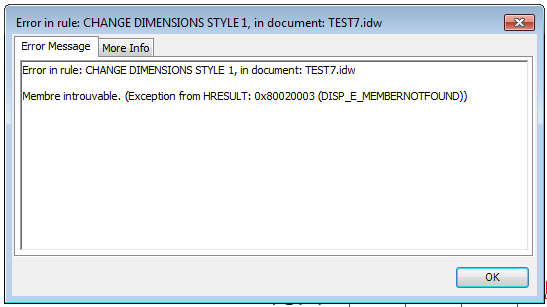
And this is my rule
Dim oIDWDoc As DrawingDocument
oIDWDoc = ThisApplication.ActiveDocument
Dim oSheet As Sheet
Dim oDim As DrawingDimension
Dim oDimStyle As DrawingStandardStyle
Dim oGeneralDimensions As GeneralDimension
oDimStyle = oIDWDoc.StylesManager.ActiveStandardStyle
For Each oSheet In oIDWDoc.Sheets
For Each oDim In oSheet.DrawingDimensions
Debug.Print ("Style Name and Val: " & oDim.style.Name & " " & oDim.ModelValue)
If oDim.style.Name <> oDimStyle.ActiveObjectDefaults.LinearDimensionStyle.Name Then
iProperties.Value("Custom", "test1") = oDim.style.Name
iProperties.Value("Custom", "test2") = oDimStyle.ActiveObjectDefaults.LinearDimensionStyle.Name
oDim.Style = oDimStyle.ActiveObjectDefaults.LinearDimensionStyle
End If
If oDim.Style.Name <> oDimStyle.ActiveObjectDefaults.LeaderTextStyle.Name Then
oDim.Style = oDimStyle.ActiveObjectDefaults.LeaderTextStyle
End If
If oDim.Style.Name <> oDimStyle.ActiveObjectDefaults.AngularDimensionStyle.Name Then
oDim.Style = oDimStyle.ActiveObjectDefaults.AngularDimensionStyle
End If
If oDim.Style.Name <> oDimStyle.ActiveObjectDefaults.ChamferNoteStyle.Name Then
oDim.Style = oDimStyle.ActiveObjectDefaults.ChamferNoteStyle
End If
If oDim.Style.Name <> oDimStyle.ActiveObjectDefaults.DiameterDimensionStyle.Name Then
oDim.Style = oDimStyle.ActiveObjectDefaults.DiameterDimensionStyle
End If
Next
Next
Thanks for your help!
Message 17 of 20

10-05-2018
02:53 AM
- Mark as New
- Bookmark
- Subscribe
- Mute
- Subscribe to RSS Feed
- Permalink
- Report
10-05-2018
02:53 AM
just want to spam a thank you. This saves me quite some time.
And you are not getting enough likes for your generous sharing!
Message 18 of 20
10-05-2018
03:47 AM
- Mark as New
- Bookmark
- Subscribe
- Mute
- Subscribe to RSS Feed
- Permalink
- Report
10-05-2018
03:47 AM
Ok I have been cheering a bit too early.
Somehow this works:
MsgBox(oDim.Style.Name & " - " & oDimStyle.ActiveObjectDefaults.LinearDimensionStyle.Name)
But this fails:
oDim.style = oDimStyle.ActiveObjectDefaults.LinearDimensionStyle
(Exception from HRESULT: 0x80020003 (DISP_E_MEMBERNOTFOUND))
And it looked like easy copy paste code.
Also, when I look at all the options within DrawingDimension, I can't see 'Style'. msgbox(oDim.Style.Name) seems to work, but I dont see it in the 'intelliSense'. Why is that?
Message 19 of 20
10-08-2018
05:41 AM
- Mark as New
- Bookmark
- Subscribe
- Mute
- Subscribe to RSS Feed
- Permalink
- Report
10-08-2018
05:41 AM
Ok so I currently work for a company that needs to update external drawings to their styles
If the styles does not exist, it updates the styles to some base style.
I wanted to update every dimension and balloon to the new style as explained in this post, only to learn that is not possible for every object (for example break lines, details or section lines were not updatable)
Then after some heavy meditating, I tried renaming the current style to the style that is in our styles library, and then update it. And that works flawless. So a whole day work for these few lines:
Dim oSTDStyle As DrawingStandardStyle = oStylMan.ActiveStandardStyle
If Not oSTDStyle.Name = "companyname" Then oSTDStyle.Name = "companyname"
For Each oStyle In oDoc.StylesManager.Styles
If oStyle.UpToDate = False Then
oStyle.UpdateFromGlobal()
End If
Next
Message 20 of 20

12-25-2019
04:33 AM
- Mark as New
- Bookmark
- Subscribe
- Mute
- Subscribe to RSS Feed
- Permalink
- Report

Reply
Topic Options
- Subscribe to RSS Feed
- Mark Topic as New
- Mark Topic as Read
- Float this Topic for Current User
- Bookmark
- Subscribe
- Printer Friendly Page