PLC Starting Address

PLC Starting Address

ronbotkin
Enthusiast Enthusiast
5,663 Views
21 Replies
Message 1 of 22

PLC Starting Address

ronbotkin
Enthusiast
Enthusiast

Does any one know the location of the Beginning Address Quick Picks when using the parametric insertion of PLC modules?  I would like to modify the quick picks for my application and add specific styles.

0 Likes
Accepted solutions (1)
5,664 Views
21 Replies
Replies (21)
Message 2 of 22

dougmcalexander
Mentor
Mentor
Accepted solution

Edit the WD.ENV file (in the AeData folder) and look for the last entry under the section entitled, "Symbol Insertion and Library Paths".  (see attached screen capture)  Remove the asterisk (*) at the beginning of the line that begins with "PLC_ADDRESS_FORMAT..."  This enables custom PLC address schemes to be displayed at the top of the standard list when you insert a PLC.  There are a couple of sample schemes on the PLC_ADDRESS_FORMAT line which you can modify as needed. Be careful with the placement of the %1 (rack) and %2 (slot) portion of the address scheme.  Save this file and restart AutoCAD Electrical.  Your custom addressing schemes will appear at the top of the Quick Picks list.


Doug McAlexander
Design Engineer/Consultant/Instructor/Mentor
Specializing in AutoCAD Electrical Implementation Support
Phone: (770) 841-8009
www.linkedin.com/in/doug-mcalexander-1a77623

Did you find this post helpful? Feel free to Like this post.
Did your question get successfully answered? Then click on the ACCEPT SOLUTION button.

EESignature

Message 3 of 22

ronbotkin
Enthusiast
Enthusiast

Thanks Doug!  That was exactly what I was looking for.

Ron

0 Likes
Message 4 of 22

ronbotkin
Enthusiast
Enthusiast

Doug,

Another question about PLC addressing.  Is there a way to make the terminal addresses increment by 2 instead of 1?

Thanks

Ron

0 Likes
Message 5 of 22

shuhn
Advocate
Advocate

I have created some custom parametric I/O Modules with some custom terminals and everything appears to work perfectly, except it is not prompting me for a Module # when I insert it, but rather skips straight to the beginning address and quick picks dialog box, which has only 3 options for Quick Picks, rather than the usual large list.  Do you have any explanation for this?

0 Likes
Message 6 of 22

dougmcalexander
Mentor
Mentor

Hmm....Make sure you defined prompts.  See the attached screen capture.

Doug McAlexander
Design Engineer/Consultant/Instructor/Mentor
Specializing in AutoCAD Electrical Implementation Support
Phone: (770) 841-8009
www.linkedin.com/in/doug-mcalexander-1a77623

Did you find this post helpful? Feel free to Like this post.
Did your question get successfully answered? Then click on the ACCEPT SOLUTION button.

EESignature

Message 7 of 22

dougmcalexander
Mentor
Mentor

Reaching back through 20 years of cobwebs, I'm fairly certain that the code that handles the addressing is part of the compiled code, which cannot be changed by us.  That said, if you are so inclined to write a lisp routine, you might be able to handle this via autolisp that executes when the module is inserted.  Essentially you would create an autolisp that edits the module addressing scheme.  There is a field in the module definition dialog where you can select an autolisp to execute when you insert a module.


Doug McAlexander
Design Engineer/Consultant/Instructor/Mentor
Specializing in AutoCAD Electrical Implementation Support
Phone: (770) 841-8009
www.linkedin.com/in/doug-mcalexander-1a77623

Did you find this post helpful? Feel free to Like this post.
Did your question get successfully answered? Then click on the ACCEPT SOLUTION button.

EESignature

0 Likes
Message 8 of 22

dougmcalexander
Mentor
Mentor

Ron, another option of course is to define/edit the PLC addresses via the Spreadsheet Import/Export, as shown in the attached screen capture.

Doug McAlexander
Design Engineer/Consultant/Instructor/Mentor
Specializing in AutoCAD Electrical Implementation Support
Phone: (770) 841-8009
www.linkedin.com/in/doug-mcalexander-1a77623

Did you find this post helpful? Feel free to Like this post.
Did your question get successfully answered? Then click on the ACCEPT SOLUTION button.

EESignature

0 Likes
Message 9 of 22

shuhn
Advocate
Advocate

The "Defined Prompts" comment and picture did it.  I had not done it in the Module Specifications.  I thought the values in the Attribute tag values of the first terminal were what did that.

0 Likes
Message 10 of 22

dougmcalexander
Mentor
Mentor
Glad you got it going. Yes, learning how to define a new PLC module isn't one of the easiest things to learn without help. In my advanced training course I dedicate a couple of hours to this, to cover all of those options, and the showing unused or not, spacing, reprompts, etc.

Doug McAlexander
Design Engineer/Consultant/Instructor/Mentor
Specializing in AutoCAD Electrical Implementation Support
Phone: (770) 841-8009
www.linkedin.com/in/doug-mcalexander-1a77623

Did you find this post helpful? Feel free to Like this post.
Did your question get successfully answered? Then click on the ACCEPT SOLUTION button.

EESignature

0 Likes
Message 11 of 22

shuhn
Advocate
Advocate

Well, we had you here for a week with 5 of us in a room.  I think we called it Admin-level training course.  It was really valuable, and we learned a lot, but I don't remember touching on that topic.

0 Likes
Message 12 of 22

dougmcalexander
Mentor
Mentor

No, we wouldn't have time in the administration level getting started course. That's my first level course that covers setting up the software and creating a template, then we simulate a design to learn the basic commands and utilities, using existing PLC modules and the standard library symbols, with the exception being the power supply we create while learning to create a custom symbol.


The advanced course goes into more detail and covers topics that wouldn't even make sense yet to someone who is still trying to grasp the basics. I've had people tell me that they felt like they drank from a fire hose in the administration level getting started class, so I have to do a separate week to cover other stuff. It would take about 4 weeks to turn over every rock to discover everything the software can do.

Doug McAlexander
Design Engineer/Consultant/Instructor/Mentor
Specializing in AutoCAD Electrical Implementation Support
Phone: (770) 841-8009
www.linkedin.com/in/doug-mcalexander-1a77623

Did you find this post helpful? Feel free to Like this post.
Did your question get successfully answered? Then click on the ACCEPT SOLUTION button.

EESignature

0 Likes
Message 13 of 22

Anonymous
Not applicable

verify email

0 Likes
Message 14 of 22

mstevensND46J
Observer
Observer

I tried this, and removing the "*" and changing the text in the file as instructed didn't have any affect on the pick list choices. In fact, I went as far as renaming the file to make the program believe the file was missing. All to no change in results. Is there something else that needs changed to get the pick list to update the available options?

0 Likes
Message 15 of 22

dougmcalexander
Mentor
Mentor

Are you sure that you removed the asterisk from the beginning of the line  to activate the option?

Doug McAlexander
Design Engineer/Consultant/Instructor/Mentor
Specializing in AutoCAD Electrical Implementation Support
Phone: (770) 841-8009
www.linkedin.com/in/doug-mcalexander-1a77623

Did you find this post helpful? Feel free to Like this post.
Did your question get successfully answered? Then click on the ACCEPT SOLUTION button.

EESignature

0 Likes
Message 16 of 22

mstevensND46J
Observer
Observer

Yes, I did, as mentioned in my initial post on this


0 Likes
Message 17 of 22

shuhn
Advocate
Advocate

Make sure you're editing the correct env file.   If you're sharing files over a network, then you have to make sure to edit the env file that you are directed at / sharing.   If you want to paste the line in a comment, I would be happy to take a look at it, but I had to work at it and massage it too.  There's also the case to be made that you might need to restart ACE if you haven't already, and make sure to rename that file back to "wd.env"...  I don't know why you would rename the one you're computer is looking at... if you're sharing over a network, you have to rename the AeData folder on your local machine to break the connection to your local machine, but renaming individual files doesn't really do anything.

0 Likes
Message 18 of 22

mstevensND46J
Observer
Observer

I renamed the file to see if that brought up an error when trying to insert a PLC parametric. Since it had no change, I figured the file was not even being referenced for the address pick list. 

I will look to find the file on the network, if it is there.

0 Likes
Message 19 of 22

shuhn
Advocate
Advocate

Well, it's in the AeData folder, whether on a server or your local machine.


0 Likes
Message 20 of 22

rhesusminus
Mentor
Mentor

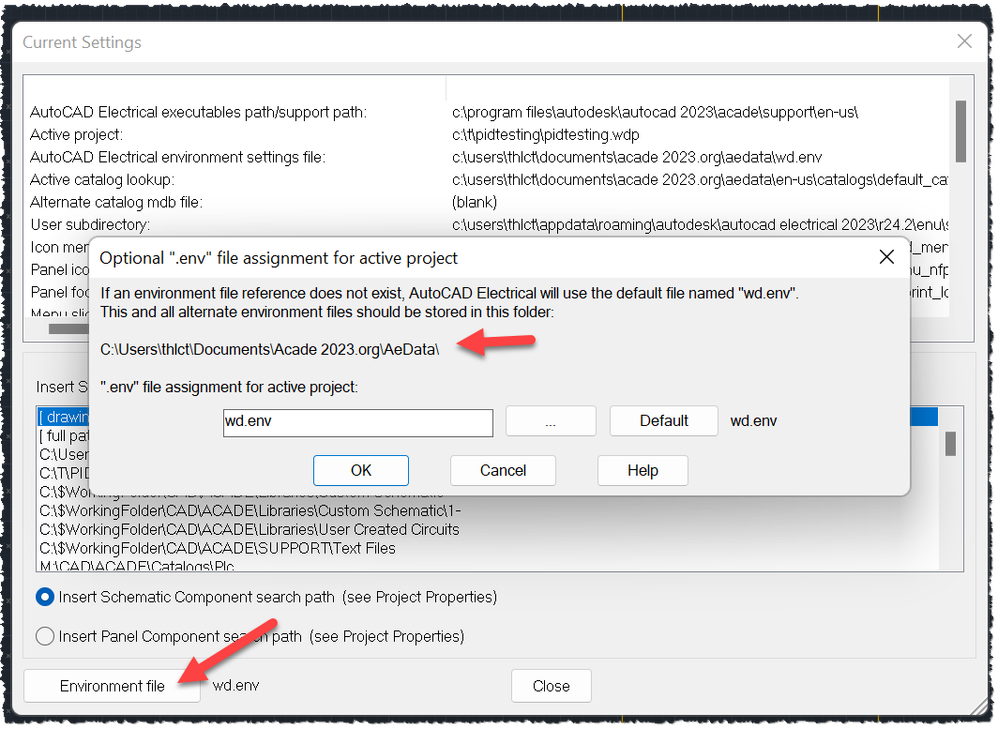
If you right-click a project, and choose "Settings...", you should be able to see the location of the env-file being used, by pressing the "Environment file" button:

20220721 1639 thlct.png


Trond Hasse Lie
EPLAN Expert and ex-AutoCAD Electrical user.
Autodesk Expert Elite Alumni
Ctrl Alt El
Please select "Accept Solution" if this post answers your question. 'Likes' won't hurt either. 😉