Cogo point default label and layer settings

Cogo point default label and layer settings

Anonymous
Not applicable
4,650 Views
6 Replies
Message 1 of 7

Cogo point default label and layer settings

Anonymous
Not applicable

I am using Description Keys for all my points that I bring in from surveying in the field.  Any point that does not have a specific descriptor key ends up on a specific layer with a specific style that I cannot figure where to set.  I have gone through my point default settings as stated in other postings but all seem to be set correctly mostly to <none>.  I have gone through my Point Group settings without finding the culprit either.  I can easily change the settings as I only have a few points that do this but I want to find the issue.  Any help is greatly appreciated.

Accepted solutions (1)
4,651 Views
6 Replies
Replies (6)
Message 2 of 7

sboon
Mentor
Mentor

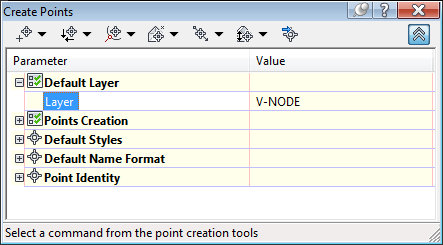
Typically I set it in the Create Points dialog within my template, and then forget about it after that.


Clipboard01.png


Steve
Expert Elite Alumnus
0 Likes
Message 3 of 7

tcorey
Mentor
Mentor
Accepted solution

Settings tab of Toolspace, Point, Commands, right click Create Points, Edit command settings...


Find Default Layer to set the layer for all points that aren't controlled by DescKeys.


Expand Default Styles to control the styles of those points. If it is set to None, then these points will take on characteristics of the Point Group. If set here to something other than None, but you want the point group to control the display, in the Point Group Properties, go to Override tab and click overrides for Style and Label Style.


Tim Corey
MicroCAD Training and Consulting, Inc.
Redding, CA
Autodesk Platinum Reseller

New knowledge is the most valuable commodity on earth. -- Kurt Vonnegut
Message 4 of 7

Anonymous
Not applicable

Thank you both for the quick replies.  My settings are set in those commands as Default Layer <use current> and under Default Styles to the style I wish. 


But the points still come in on another layer C-PNTS-TEXT (not my choice) and the style is not what I set.

0 Likes
Message 5 of 7

sboon
Mentor
Mentor

If you look at the Command Settings dialog that Tim mentioned, is there anything in the Child Override column?


If you select one of these points and look at the Properties dialog you should be able to find out which point group it's part of.  Does that point group have any layer or style overrides in it?

Steve
Expert Elite Alumnus
0 Likes
Message 6 of 7

tcorey
Mentor
Mentor

Double check your description keys to be sure you don't have a code that is picking up points you don't intend.


Post your drawing and ascii point file.


Tim Corey
MicroCAD Training and Consulting, Inc.
Redding, CA
Autodesk Platinum Reseller

New knowledge is the most valuable commodity on earth. -- Kurt Vonnegut
0 Likes
Message 7 of 7

Anonymous
Not applicable

No child overrides but it worked when I changed the selection of <current> layer to a specific layer and began a new drawing and reimported my points.  The styles followed the defaults I set too.


Thanks

0 Likes